 Accord
Getting started with Accord
Accord has no central server: you and your friend connect directly, device to device, end-to-end encrypted. Here is how to get going, step by step.
1. Install the app
Download the build for your system from the download page.
- macOS — open the
.dmgand drag Accord into Applications. On first launch: right-click the app → Open (the app is not signed with an Apple developer account, so macOS asks for confirmation the first time only). Universal build: Apple Silicon (M1–M4) and Intel. - Windows — run the installer. If SmartScreen steps in: More info → Run anyway.
- Linux — make the AppImage executable (
chmod +x) and run it, or install the.deb.
2. Create your identity
On first launch, each person creates their identity:
- A password that unlocks the app on this machine.
- A 12-word recovery phrase — this is your account. Write it down and keep it safe, offline. It lets you restore your identity on another device; nobody, not even you, can regenerate it.
- A display name, changeable at any time.
3. Connect to a friend
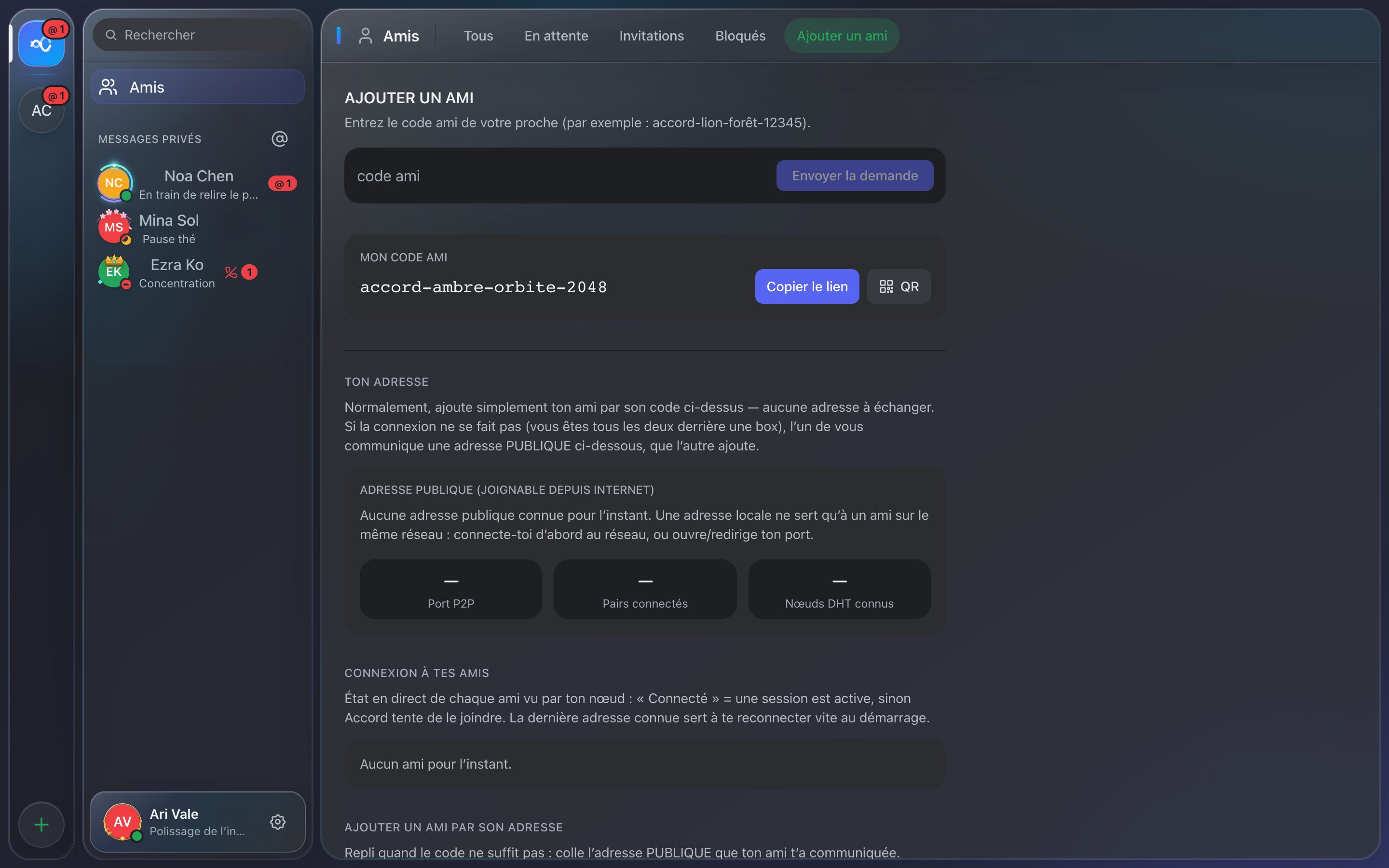
This is the key peer-to-peer step. Accord first tries on its own to open your port (UPnP / NAT-PMP) and to find friends on the same Wi-Fi. Often there is nothing to do. Otherwise, the cases are:
- Same local network (same Wi-Fi / router). It usually just works with zero configuration: your two apps discover each other automatically.
- Over the Internet. One of you opens Settings → Add a friend and copies their public address (
ip:port). Send it to the other person (message, email…), who pastes it into "Add a friend by address". The "connected peers" counter should go to 1. - If no public address shows up. Your router did not open the port automatically: forward UDP port 48016 to your computer in your router's interface, then try again. Only one of the two friends needs a reachable port.
4. Become friends
Once connected to the network:
- Each of you finds your friend code in Settings → My account (6 words + a number).
- You send your code to your friend; they add it and send you a request.
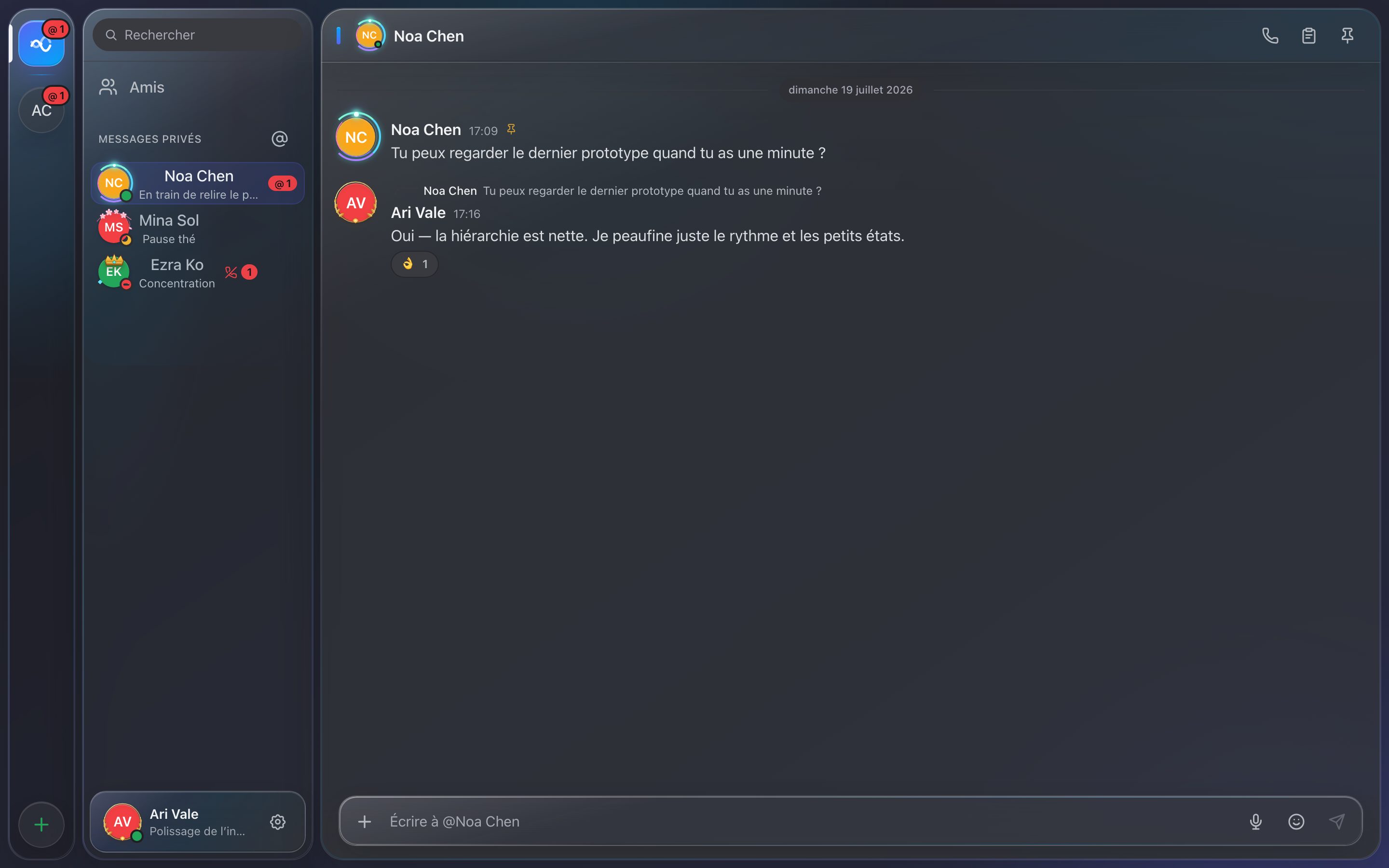
- You accept → you are friends. You can now exchange messages, images and files, and call each other.
5. Avatar, banner, servers
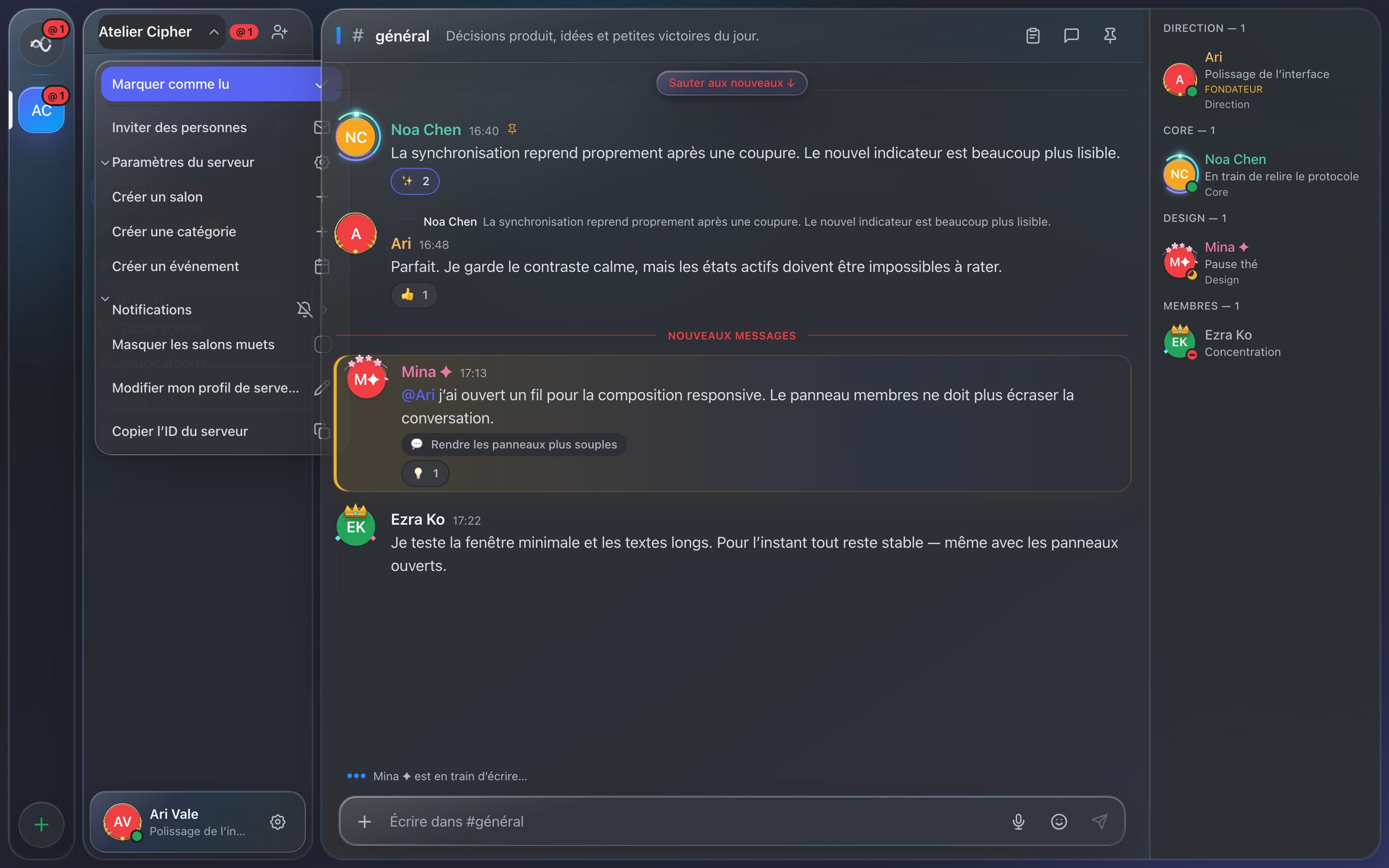
Customize your avatar and banner from Settings → My account: they sync automatically to your friends (images travel peer-to-peer, with a progress bar). Create a server to gather several friends around text and voice channels, with roles and permissions.
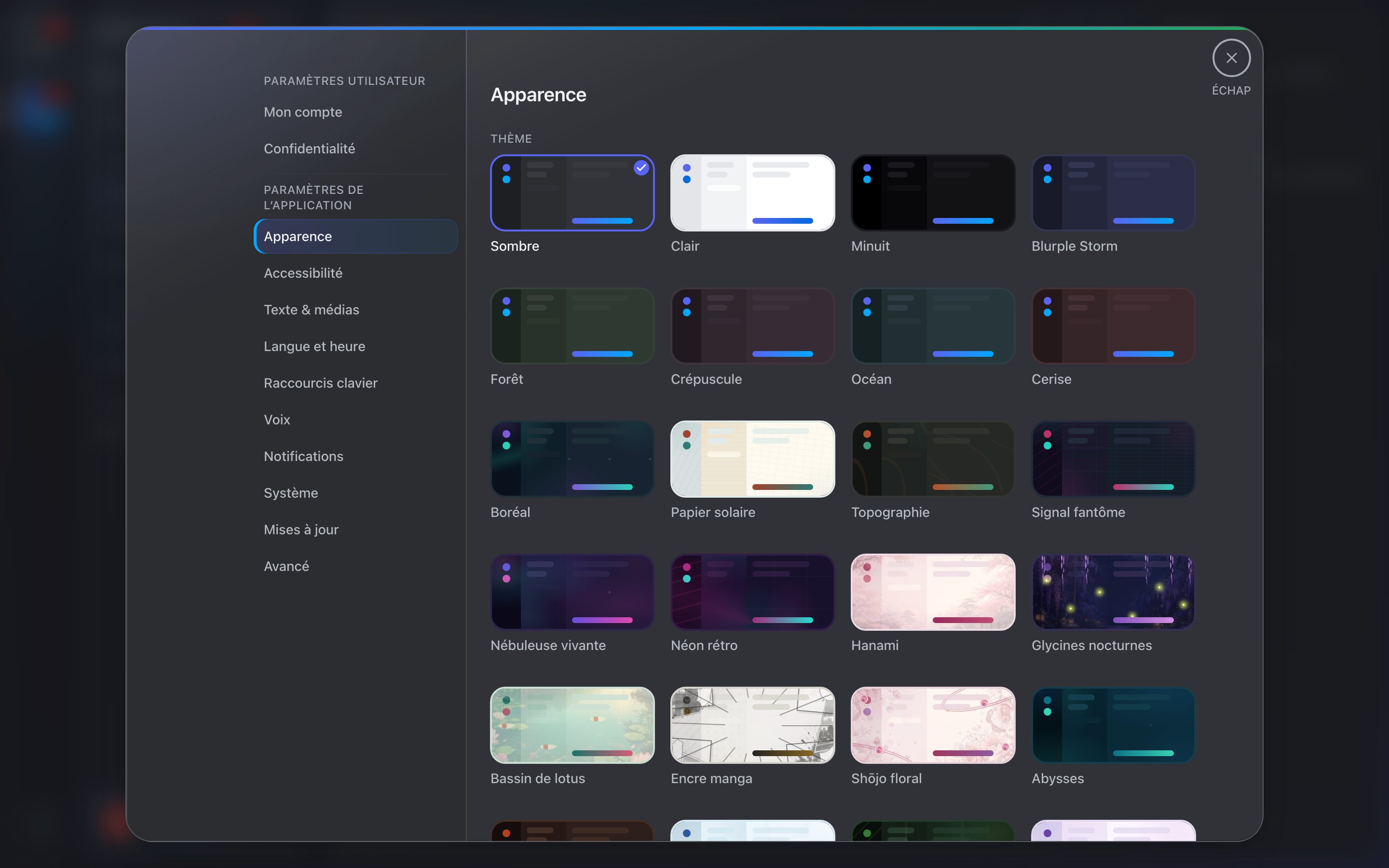
Want a different look? Settings → Appearance offers 24+ themes — dark, light, animated — plus a custom theme editor you can share by code.
6. Network troubleshooting
- "Connected peers" stays at 0: UDP port 48016 is not reachable on either side. Check the port forward on the host side, or first test on the same local network to confirm everything else works.
- An image does not appear right away: give it a few seconds — the file downloads peer-to-peer. The Network panel confirms whether the friend is connected.
- The mic does not react: allow the microphone in your system's privacy settings.
- After sleep: Accord automatically retries your friends at their last known address on wake and on startup.
7. Updates
Since 2.0, Accord updates itself: a banner appears when a new version ships, one click installs it. Updates are cryptographically signed. To check manually: Settings → Updates.